How to Submit a Service Request
Use Tampa Connect to report an issue or request a City service. Start by choosing the type of request, then complete the five steps below.
-
Start
Select Service Request Type
Find the service you need using either option:
- Option 1: Enter a keyword or topic in the search box.
- Option 2: Select a service area from the list of categories.
Click Request this Service.
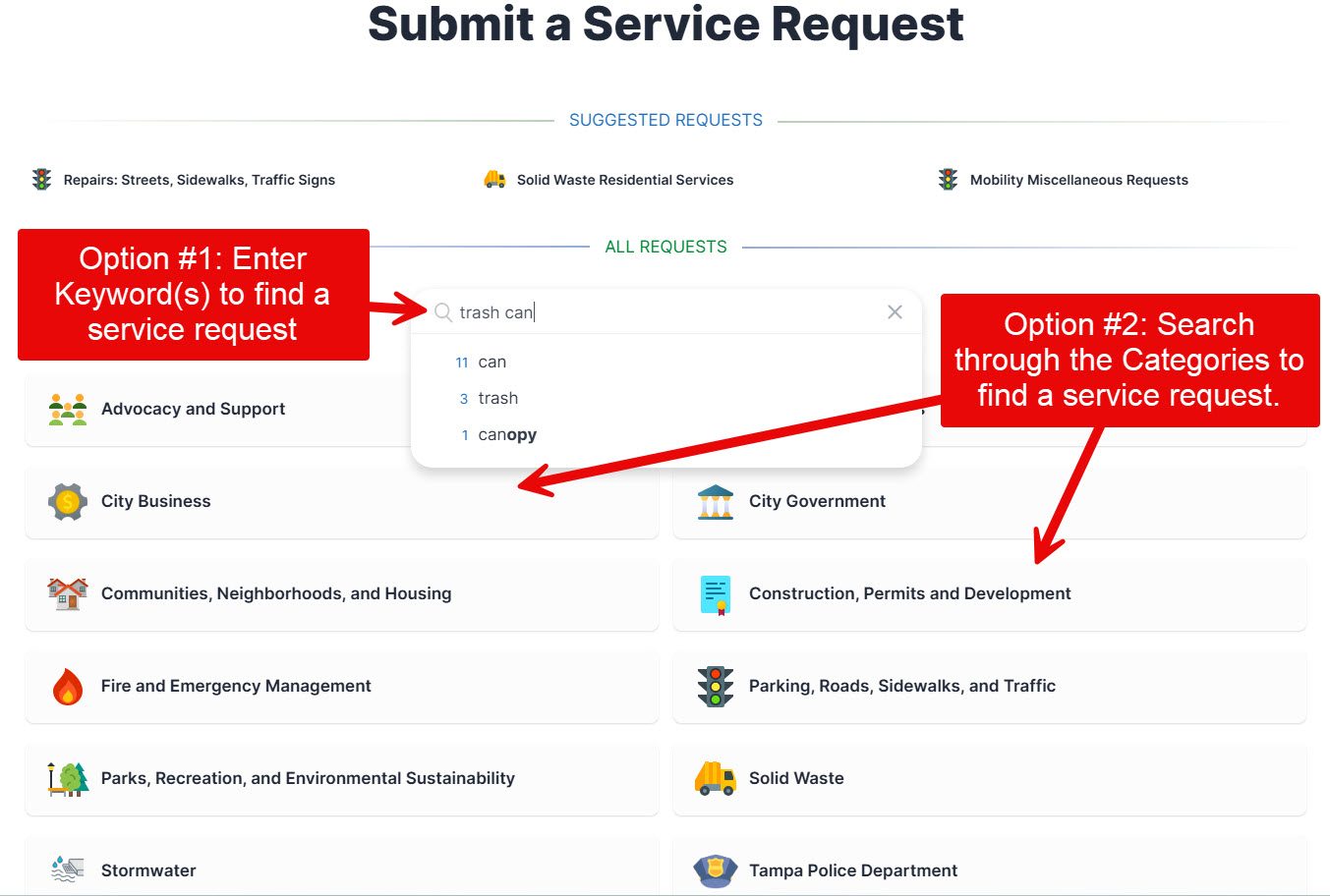 The Submit a Service Request screen, showing the keyword search and service categories.
-
1
Step 1: Enter Location
- Option 1: Enter the address for the service request location.
- Option 2: Click on the map to select the associated location.
Click Continue.
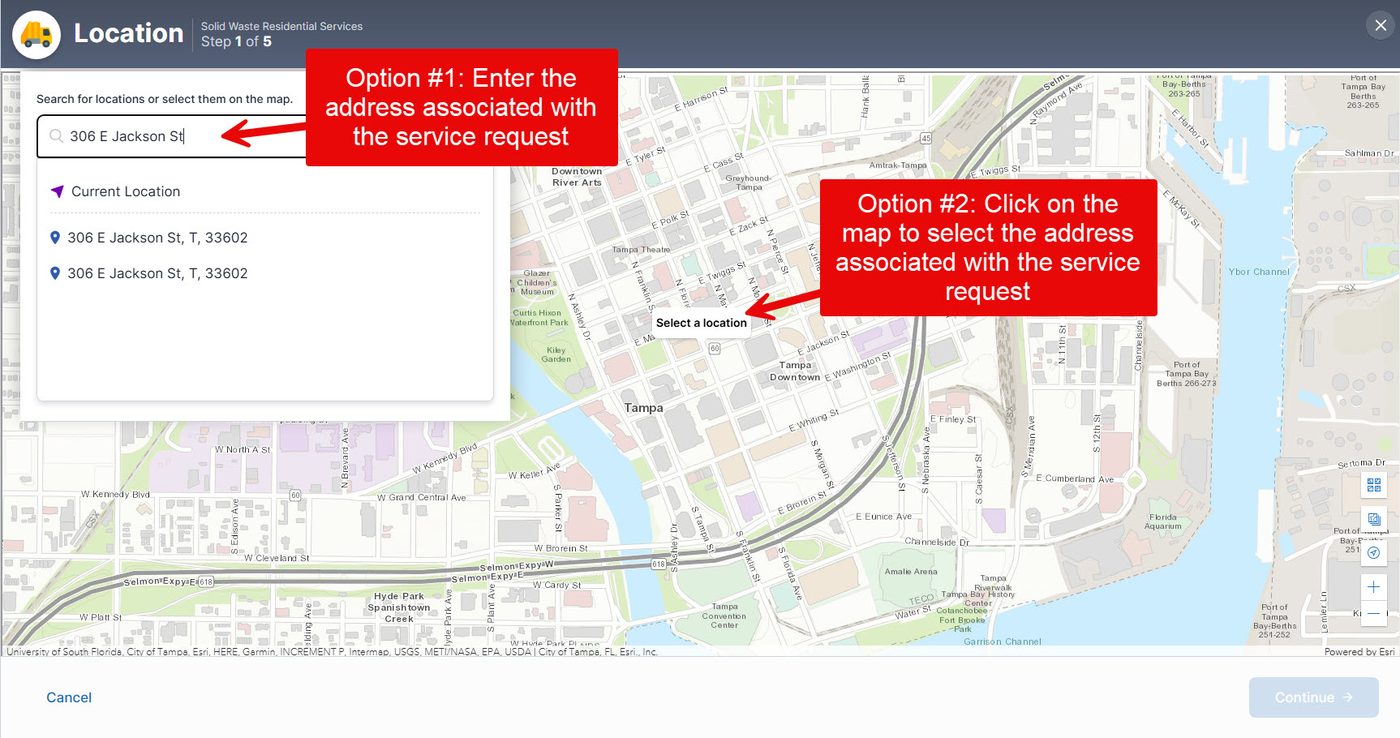 Step 1: Search for an address or pick a spot on the map.
-
2
Step 2: Contact
Enter your contact information to receive updates on the status of your request.
Click Continue.
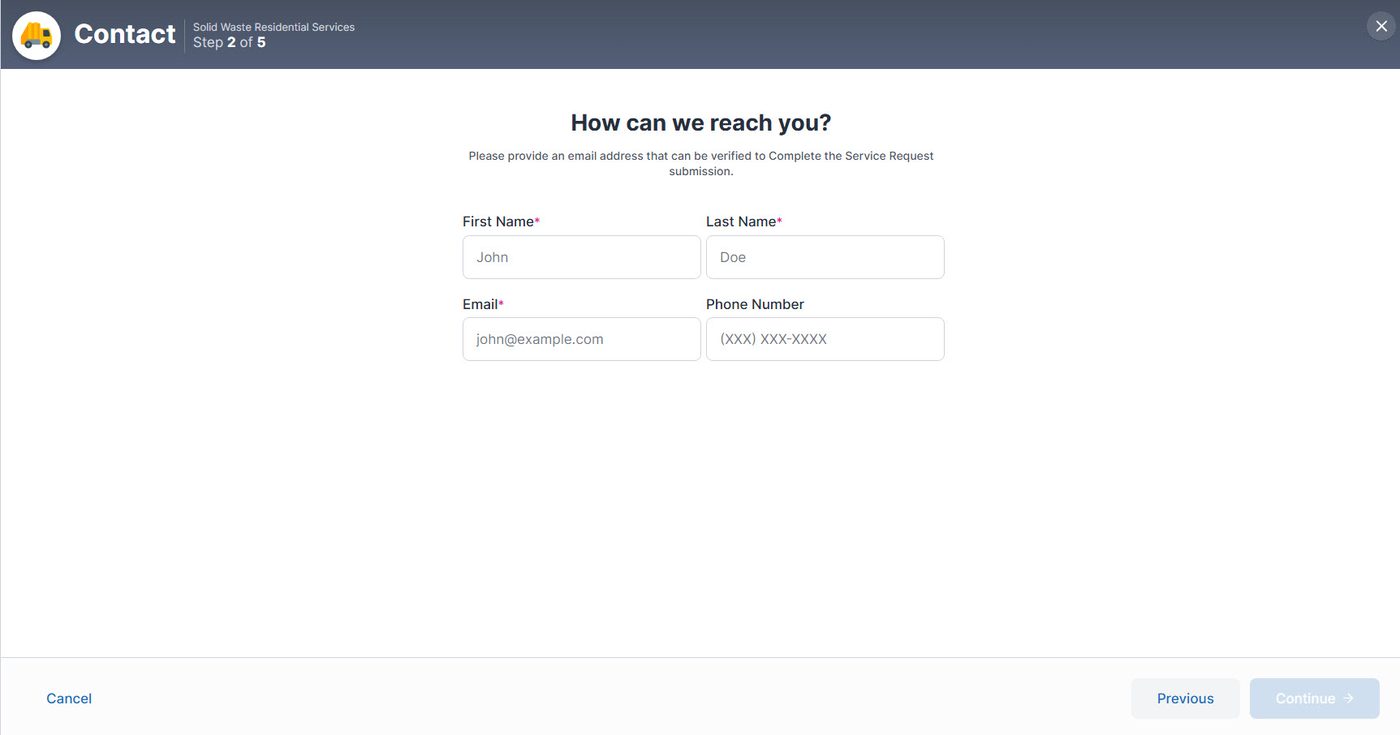 Step 2: Provide your name, email, and phone number.
-
3
Step 3: Details
Answer the questions related to your service request so it is directed to the appropriate department.
Click Continue.
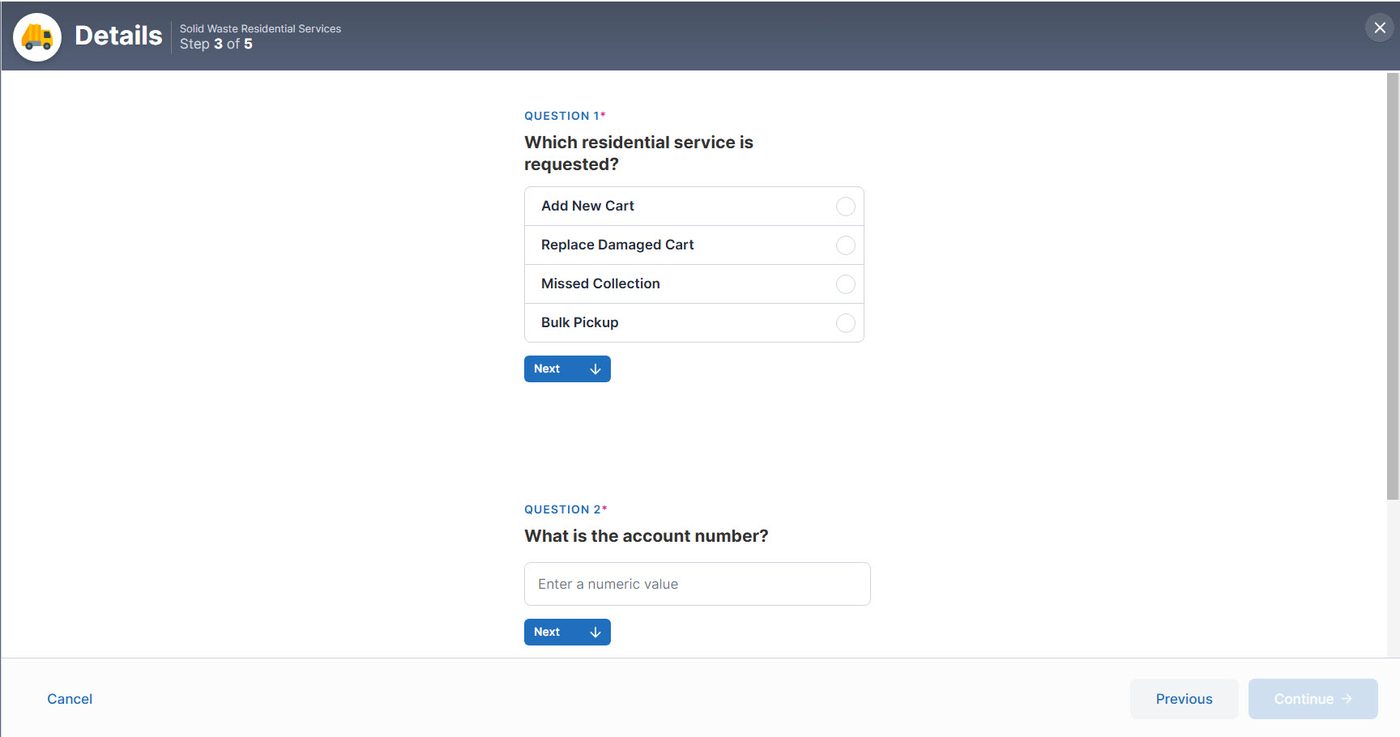 Step 3: Questions change based on the type of request you selected.
-
4
Step 4: File Upload
Optional: Upload a picture or file that supports your request.
Click Continue.
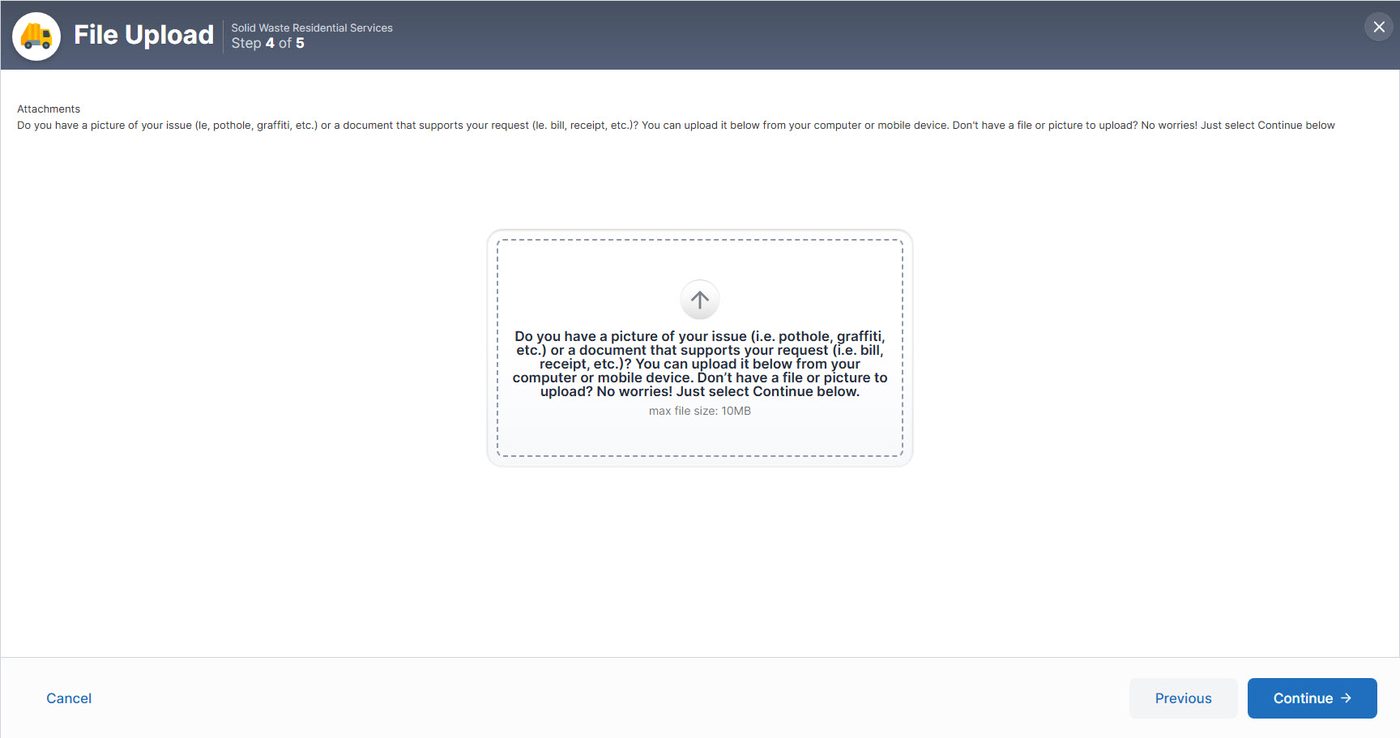 Step 4: Adding a photo is optional.
-
5
Step 5: Review
Verify the service request details.
Click Submit Request or Register and Submit.
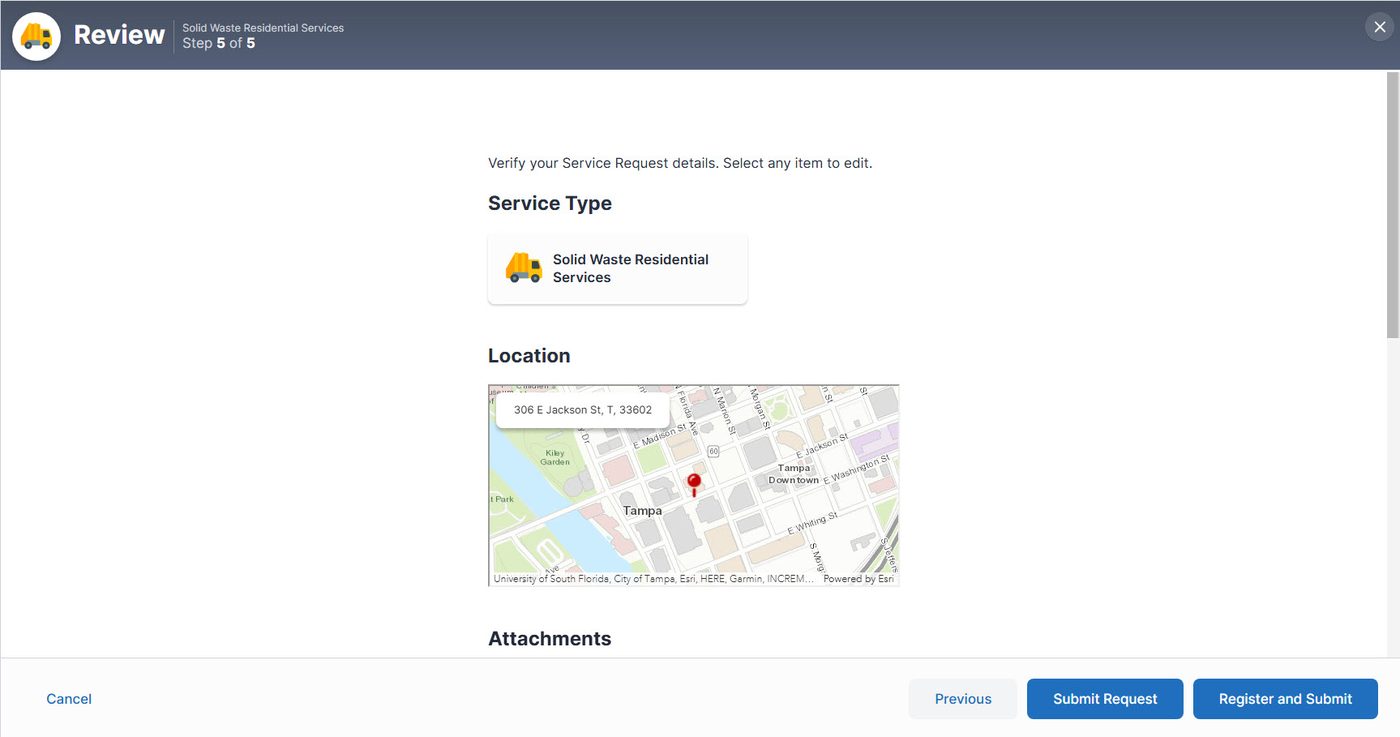 Step 5: Check your details, then submit.
FAQ
1. At submission should receive a confirmation page with confirmation number. 2. If email was required at submission should receive confirmation.
Option to reset your password. To submit request you do not need to create an account.
To review status of submitted service request you please refer to email submission email.
None if not required. To expediate resolution upload docs are available.
No changes can be made to your original request. Additional content can be added, ie. Docs, photos.
Please contact the appropriate department that you submitted to the request to.
Please use the search feature on tampagov for additional information.
When you select your request, the resolution estimate is provided. Resolution estimates various based on service request.
The City of Tampa's commitment to accessibility for all begins with this site and our efforts to ensure all functionality and all content is accessible to all Americans.
Our ongoing accessibility effort conform with Web Content Accessibility Guidelines (WCAG) version 2.1, level AA criteria. These guidelines not only help make web content accessible to users with sensory, cognitive and mobility disabilities, but ultimately to all users, regardless of ability. The City of Tampa will also strive toward compliance with the newly created WCAG 2.2 standards.
Our ongoing accessibility efforts work toward making tampagov.net as accessible as possible. The City of Tampa welcomes comments on how to improve the site's accessibility for users with disabilities.